


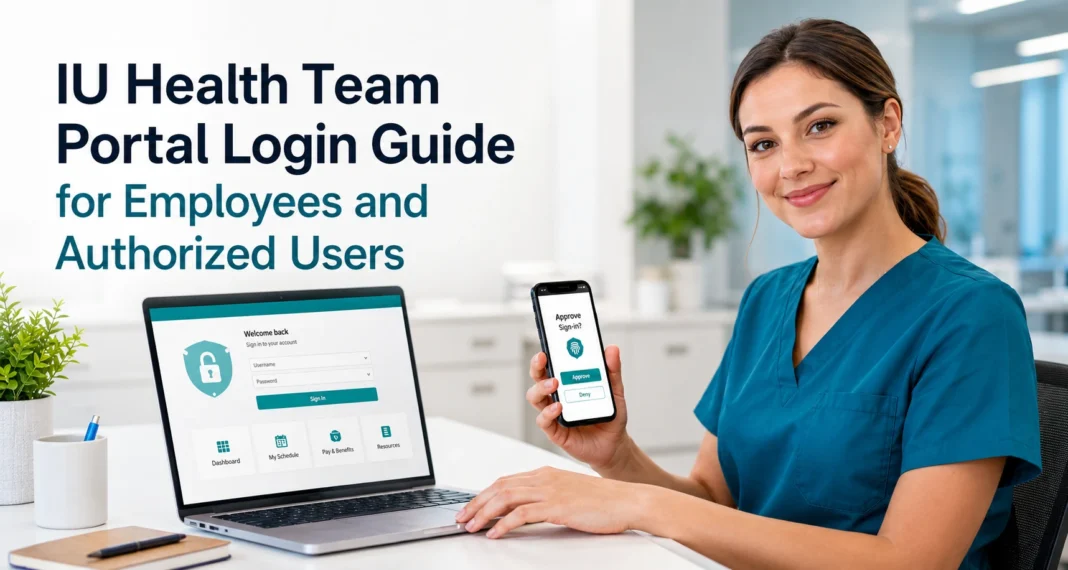
Authorized IU Health employees, providers, and team members can access the IU Health Team Portal with their workplace credentials. Patients should use the My IU Health patient portal instead. The IU Health Team Portal gives authorized IU Health employees, providers, and team members access to workplace systems and resources. It is not a public account service, and patients should not use it to check medical records or appointments.
Users need valid IU Health credentials and may need approval through Microsoft Authenticator. The exact tools shown after login can differ based on a person’s job, department, and access level.
Start with the official portal
Use the IU Health Team Portal link listed by Indiana University School of Medicine. Its New Provider and Faculty Orientation page includes the portal as an official resource for new providers and faculty members. A search result, advertisement, or third-party login page may look real. That does not mean it belongs to IU Health. The same safe portal login practices also apply to students and healthcare workers who access other protected online systems.
Before you enter any account details, check these points:
- The link came from an official IU Health or Indiana University resource.
- The browser shows a secure HTTPS connection.
- The page does not ask for payment to restore account access.
- The page does not ask for your password through a chat box or contact form.
- The authentication request matches a login attempt you started.
HealthWavy does not provide an IU Health login form. It also does not collect employee usernames, passwords, authentication codes, or workplace records.
This portal is for work, not patient care
The similar names can cause confusion. The IU Health Team Portal serves authorized team members. It may connect them with workplace applications, employee resources, internal information, or tools tied to their role. The My IU Health patient portal serves patients. IU Health states that patients can use My IU Health to send secure messages, schedule certain appointments, manage prescription renewals, pay bills, and view lab results.
Here is the practical difference:
| IU Health Team Portal | My IU Health patient portal |
|---|---|
| Intended for employees and authorized team members | Intended for IU Health patients |
| Uses workplace credentials | Uses a patient portal account |
| Connects users with work-related resources | Provides access to appointments, bills, messages, and health records |
| Support comes through the IU Health Service Desk | Support comes through My IU Health Patient Portal Support |
| Access depends on employment and assigned permissions | Eligible patients can create or activate an account |
A patient should not try to use the Team Portal to find lab results or request medical records. An employee should not use the patient portal password to enter workplace systems.
Details you should have before login
A normal Team Portal login may require:
- Your IU Health email address or assigned username
- Your IU Health password
- A registered mobile device
- Microsoft Authenticator
- Internet access
- Access permission for the service you want to open
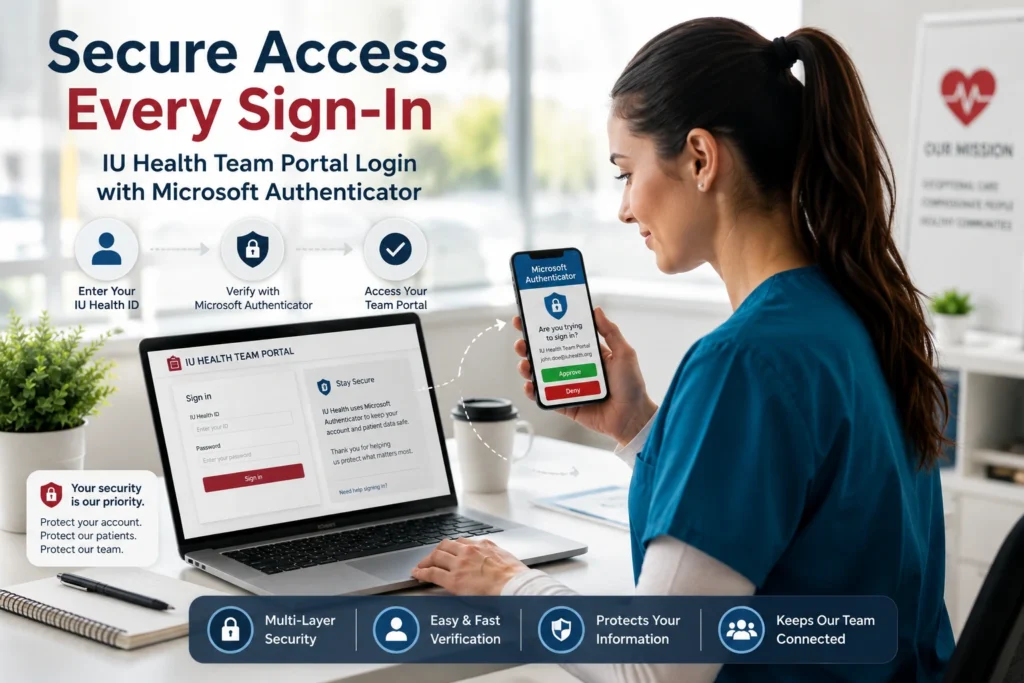
IU Health uses Microsoft Authenticator with standard login credentials to confirm a user’s identity. After the credentials pass, the user receives a mobile push notification and must approve the request.
A username and password may not be enough on their own. This is intentional. A second identity check helps protect employee accounts and healthcare systems from unauthorized access.
A simple way to sign in
The screen may vary based on the device, location, or service. The basic process should follow this order. Open the IU Health Team Portal through an official source. Enter your IU Health work credentials. Review the Microsoft Authenticator prompt on your registered mobile device. Enter the number shown on the login screen if number matching appears.
Approve the request only if you started it. Wait for the portal or requested application to open. Do not approve a prompt that arrives without a login attempt. An unexpected request could mean that another person has entered your password. Stop the process and contact the IU Health Service Desk if the sign-in page looks unusual or the prompt appears without a clear reason.
Microsoft Authenticator is part of the process
IU Health’s public multi-factor authentication page states that it uses the Microsoft Authenticator mobile app for extra identity verification. A successful login requires valid credentials and approval of the mobile push notification.
IU Health replaced Duo with Microsoft Authenticator for its own applications. An official IU Health FAQ dated August 8, 2023, states that team members may still need Duo for partner organizations, such as Indiana University or Eskenazi Health.
This explains why an employee may have both apps on one phone. The app required depends on the organization that controls the system. Microsoft Authenticator can work as a separate app on a personal phone. The IU Health FAQ says users do not need to install Microsoft Intune just to use Authenticator.
First-time Authenticator setup
IU Health’s registration guide says the first setup requires an IU Health workstation and the mobile device that the team member plans to use. An IU Health workstation can include an issued computer, Badge Tap device, or Virtual Desktop environment.
The official process includes these steps:
- Install Microsoft Authenticator from the Apple App Store or Google Play.
- Use an IU Health workstation to sign in to the Microsoft account security page with IU Health credentials.
- Open the security information area.
- Add the Authenticator app as a sign-in method.
- Select the option to add a work or school account in the mobile app.
- Scan the QR code shown on the workstation.
- Complete the number-matching test.
- Finish the setup and confirm that the method appears in the account.
The official job aid recommends completing the setup in one session. It estimates that the process may take about five to ten minutes. A user who already has Microsoft Authenticator must still add the IU Health work account. Having the app on the phone does not mean the IU Health account is registered.
The official setup steps are also available in the IU Health Microsoft Authenticator registration guide.
Login problems that users often face
Portal access can fail even when the user knows the correct password. The error may come from the browser, Authenticator registration, an old device, account permissions, or the service itself. The right fix depends on where the process stops. The official IU Health Microsoft Authenticator FAQ provides more help with missing prompts, new devices, registration loops, and number-matching problems
The portal page does not open
First, confirm that you used an official portal link. Avoid links copied from an unknown blog, email, text message, or online advertisement. Next, try these checks. Refresh the page once.Check that your internet connection is stable, then reopen the browser. If the portal keeps returning to the same screen, clear its stored cookies or try another updated browser.
Turn off browser extensions that may block scripts or redirects. Try an IU Health-issued device if a personal device fails. Check whether the same problem affects other IU Health services. Repeated refresh attempts will not fix an account permission problem. Contact support when the page opens normally but denies access after authentication.
The password is not accepted
Check the spelling, keyboard layout, and Caps Lock key. Make sure you are using an IU Health workplace password rather than a patient portal or Indiana University password. Do not keep guessing. Too many failed attempts may lock the account or cause a security alert. Use the official password recovery method provided by IU Health or contact the Service Desk. Never send a password through email, social media, or a third-party support form.
No Authenticator notification appears
A missing notification does not always mean the login failed. Check the phone’s internet connection and notification settings. Open Microsoft Authenticator directly to see whether a request appears inside the app.
An old device registration can also cause this problem. IU Health’s FAQ says a user who previously registered a different mobile device may need to ask the Service Desk for re-registration.
The number is hidden on the phone
Large text settings can hide part of the number-matching screen. The official IU Health FAQ advises users to scroll inside the Authenticator message and select the option that says they cannot see the number. Do not enter random numbers. Return to the browser screen and confirm the number shown there.
Authenticator keeps asking for registration
A continuous setup loop can happen when a person tries to complete registration through the phone’s browser. IU Health says the registration process must be completed through an IU Health workstation. A user caught in the loop should open the Microsoft security information page on that workstation or contact the Service Desk.
The approval request fails
IU Health’s FAQ advises users to try the authentication process up to five times within five minutes because a request may take time to process. Continued failure requires help from the Service Desk. Check that the phone has internet access before another attempt. Switching between Wi-Fi and cellular data may help when one connection is unstable.
The portal opens but a tool is missing
Successful portal access does not give every employee access to every system. Permissions may depend on job duties, department, employment status, facility, training, or manager approval. A missing application may require an access request rather than a login fix. Contact a supervisor, department administrator, onboarding contact, or the IU Health Service Desk. Tell them the exact name of the missing tool and any error message shown.
A new phone can stop authentication
Replacing a phone is one of the most common causes of MFA trouble. Installing Microsoft Authenticator on the new device may not restore the work account automatically. The IU Health account must remain linked to a valid authentication method.
Take these steps:
- Install Microsoft Authenticator on the new phone.
- Check whether the IU Health work account appears in the app.
- Try a normal login.
- Contact the Service Desk if no approval request arrives.
- Ask whether the old device registration must be removed.
- Complete re-registration through an IU Health workstation when instructed.
Keep the old phone until the new one works, when possible. This can reduce the chance of losing access during the change. A lost or stolen phone should be reported quickly. The organization may need to remove that device as an approved authentication method.
You can register more than one device
The official IU Health FAQ states that Microsoft Authenticator may be installed on more than one personal mobile device, such as a phone and tablet. A second device can help if the main phone breaks or becomes unavailable. Each device still needs proper registration. Do not add a shared family device or a phone controlled by another person. Authentication access should remain under the employee’s control.
Apple Watch approval does not work
Microsoft does not support Authenticator approval requests through Apple Watch. IU Health’s FAQ links this limit to protection against MFA phishing attacks. Users must approve the request on their phone. A watch notification may still alert the user, but it should not replace the approval step on the registered mobile device.
Access from home may depend on the resource
The Team Portal provides a route to authorized workplace resources, but access rules can differ. A service may open through a normal web browser, require Microsoft Authenticator, require an IU Health-issued computer, use a virtual desktop, require a secure network connection, or remain limited to certain departments or roles. IU Health’s Authenticator setup guide refers to issued computers, Badge Tap, and Virtual Desktop as examples of IU Health workstations.
A portal login from home does not guarantee that every internal application will open. This is an important point that generic login guides often miss. The portal and the application behind it can have separate security rules.
Do not use patient support for an employee account
My IU Health Patient Portal Support deals with patient accounts. It helps with services such as patient enrollment, medical records, appointments, and portal access. Employee login problems should go to the IU Health Service Desk instead.
The current public IU Health multi-factor authentication page lists the toll-free Service Desk number as 1-888-760-0035. Older IU Health Authenticator documents list 317-962-2828. The toll-free number on the current public MFA page should be the first choice.
Have this information ready before the call:
- Your name
- Your IU Health username or email address
- The device you use
- The application you tried to open
- The exact error message
- Whether you changed phones
- Whether Authenticator sent a prompt
- The time the error occurred
Never give the support representative your full password or an active one-time authentication code.
Treat unexpected MFA requests as a warning
An unexpected Authenticator request can signal that someone else knows or guessed the password. Do not approve it. Deny the request if the app offers that option. Change the workplace password through the approved IU Health method. Contact the Service Desk. Report any suspicious email or login page linked to the request. Review recent account activity if IU Health support asks you to do so. MFA protects an account only when the user checks each request. Automatic approval defeats the purpose of the security step.
Small checks can save a support call
A few details can solve a login problem before it becomes a long support case. Confirm that the account belongs to IU Health, not the patient portal. The phone date and time are correct. Microsoft Authenticator can send notifications. The work account still appears in the app. The browser allows cookies and redirects.
The user has not changed phones recently. The requested application matches the employee’s role. The approval request appeared after a login the user started. Take a screenshot of the error when workplace policy permits it. Remove patient data, passwords, employee records, QR codes, and authentication numbers before sharing the image.
Independent information notice
HealthWavy is an independent health information website. It is not operated by, affiliated with, or endorsed by Indiana University Health or Indiana University. Portal addresses, authentication rules, application access, and support details can change. Use official IU Health resources for the latest instructions. Never enter IU Health credentials on HealthWavy or another third-party website.
Quick Answers
Use the portal link from an official IU Health or Indiana University page. Do not trust a random link just because it says “IU Health Team Portal.” Take a second to check the web address before you enter your work details.
Employee login and account access issues should go to the IU Health Service Desk. My IU Health Patient Portal Support handles patient accounts and cannot usually resolve employee access problems. The current toll-free Service Desk number is 1-888-760-0035.
Access may require Microsoft Authenticator to be registered again on the new device. Installing the app does not always restore the IU Health work account. Contact the Service Desk if prompts still reach the old phone or the work account does not appear.
They are two different portals. IU Health employees and providers use the Team Portal for work. My IU Health is for patients who want to check appointments, test results, messages, medical records, or bills.